- Are Perixx products for Windows also compatible with Apple/Mac devices?
Unless specifically designed for Mac, Perixx products are optimized for Windows. While compatible with macOS, some functions (such as hotkeys) may not work...
- Can I change the scrolling direction on my PERIPAD touchpad?
You may be able to change it through your Device Manager Windows. On Windows 10, you can change this setting by going to Start > Settings > Touch pad > Scroll...
- Defect product? This checklist may help!
Don't worry, before getting into more technical details, below checklist may help you solve the easy problems: - Please connect your Perixx product to another...
- Does Perixx have products compatible with the mac system?
Perixx has some products designed for the mac all marked by the product description. (add the compatibility filter on Our shop) Please don't hesitate to...
- How can I change the keyboard language setting?
To change the keyboard language setting, follow specific steps based on your operating system. (Detailed instructions are provided for Windows XP, 7, 8, 10,...
- How can I clean my Perixx mouse pad?
To maintain your mouse pad's quality, we recommend a gentle cleaning approach. Simply use a moist washcloth or a soft rag with a mild cleaner such as shampoo...
- How do I know that my perixx mouse is defective?
What shall I do if the Mouse is scrolling involuntarily? 1. check the battery: As product is wireless, like all battery-operated devices, their performance...
- How do I pair a Bluetooth keyboard and mouse?
Follow the pairing process outlined in the user manual. Make sure the devices are fully charged and remove any previously paired devices from your...
- How to fix a jammed keyboard key?
For Membrane or Mechanical Type - Unplug or turn off the keyboard. - Identify the key causing the issue (e.g., the 'Y' key), then gently pry up the key using a...
- I am using Perixx Bluetooth-mouse or Keyboard and suddenly lost the connection, what shall i do?
The cause of the problem could be the energy-saving option for the Bluetooth adapter or the mouse. For energy saving purpose, Windows switches off the internal...
- I lost the receiver for my Perixx product, what do I do?
USB receivers for all Perixx products are available on our webstore and can be purchased individually. Please don't hesitate to contact us if you have any...
- I purchased a new USB-receiver for my Perixx product, how do I connect them?
To establish a connection between your newly acquired USB-receiver and your Perixx product, kindly follow these steps: 1. Prepare the Devices: Ensure that both...
- I'm experiencing an issue where my keyboard types double letters. How can I fix this on a Windows system?
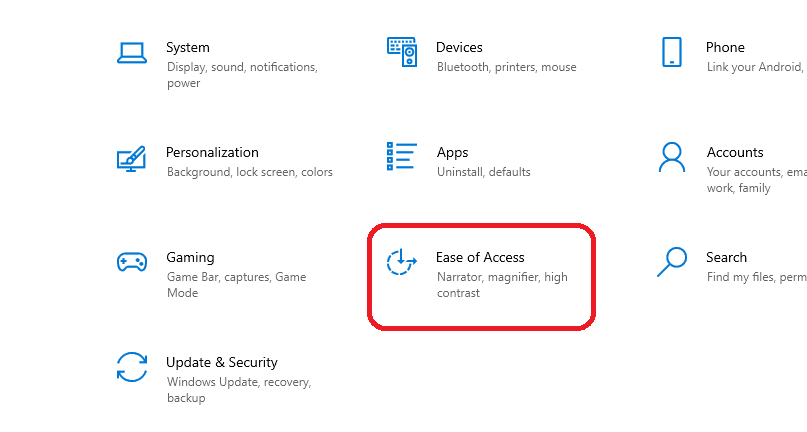
- To address issues like double letters on your keyboard, you can try the following steps: - Open Settings: Click on the Start menu, then select the "Settings"...
- I'm experiencing stuck keys on my keyboard. How can I resolve this issue?
For Membrane or Mechanical Type - Unplug or turn off the keyboard. - Identify the key causing the issue (e.g., the 'Y' key), then gently pry up the key using a...
- I'm using a USB hub with my Perixx devices. How should I manage power consumption and compatibility?
To ensure optimal performance and prevent potential power-related problems, we advise refraining from connecting high-power USB devices to the keyboard hubs....
- My device asks for a pin to connect the mouse/keyboard, what do I do?
Sometimes some devices require an access pin to connect peripherals, so we decided to make it easy, if your device asks for a pin, try "0000" "1111" or "1234"....
- My device is asking for a PIN code to connect the Bluetooth keyboard, but I can't see the code on my device. What should I do?
In the event that your device prompts for a PIN code but fails to display it, you can attempt inputting widely-used PIN codes such as 0000, 1111, or 1234 in...
- What are Perixx products compatible with?
Every product from Perixx is thoughtfully crafted to seamlessly integrate with the Windows operating system. However, it's important to note that our products...
- What is NUM-LOCK key?
By default, the NUM LOCK feature is activated within the Windows operating system. This functionality enables users to conveniently utilize the numeric keypad...
- What should I do if I have an issue with a Perixx product?
Please follow these steps: - Connect the device to another computer to check if the problem persists. - Ensure proper connection directly to computer ports. -...
- Where can I find the driver for the product?
You can access the drivers for Perixx products by visiting the provided link: Drivers Feel free to contact us for any additional inquiries or feedback. We are...
- Why some keys (j, k, l, u, i, o, etc...) doesn't appear correctly?

By default, your computer enables the "Number Lock" feature to helps the user to use the numeric pad separately and easily, which is why some keys (j, k, l, u,...
Can't find what you're looking for?
Tell us about your issue and our support team will get back to you by email.
Contact Support